
AI-Powered Image Recognition in FileMaker (Part 2)
Table of Contents
In Part 1, we covered how to set up and deploy an AI model for image recognition in FileMaker 2025, including configuring the AI account, understanding multi-modal embedding models, and generating your first image embeddings.
Now it’s time to put those embeddings to work. In Part 2, we’ll build a real semantic image search workflow — the kind where a user types a description and FileMaker finds matching images based on meaning, not keywords or filenames.
What We’re Building
By the end of this post, you’ll have a working system where:
- Images stored in container fields have vector embeddings generated automatically
- Users can search for images using natural language (e.g., “sunset over water” or “team meeting in conference room”)
- FileMaker returns visually relevant results ranked by similarity
This is semantic image search — and it’s one of the most compelling AI features in FileMaker 2025.
Prerequisites
Before starting, make sure you have:
- FileMaker 2025 (Server and Pro)
- An AI model account configured (from Part 1)
- A multi-modal embedding model set up (e.g., CLIP-based model)
- A table with container fields holding images
- Embedding fields to store the generated vectors
🛡️ Responsible AI Note: Store embeddings in encrypted container fields and apply field-level access control. Embeddings can contain latent patterns that reflect private or proprietary data, depending on which data you will be embedding.
Step 1: Generate Embeddings for All Images
If you followed Part 1, you already know how to generate an embedding for a single image. Now we need to batch-process your entire image library.
Create a script that loops through all records and generates embeddings:
Go to Record/Request/Page [ First ]
Loop
    If [ IsEmpty( Images::embedding_vector ) ]
        # Generate embedding from container
        Set Variable [ $embedding ; Value:
            AIModelEmbedding( "your-model-name" ; Images::photo_container )
        ]
        Set Field [ Images::embedding_vector ; $embedding ]
        Commit Records/Requests
    End If
    Go to Record/Request/Page [ Next ; Exit after last ]
End Loop
Tips for batch processing:
- Run this on the server for large image libraries
- Process during off-hours to avoid performance impact
- Add error handling for images that fail to embed (corrupt files, unsupported formats)
- Track progress with a counter so you know where you are
🛡️ Responsible AI Note: Always document which model is in use and ensure only authorized users can modify model settings. This helps maintain consistency and ensure accurate results in semantic search.
Step 2: Build the Search Interface
Create a layout with:
- A text field for the search query (e.g., “red car” or “person holding a document”)
- A search button that triggers the semantic search script
- A portal or list view to display results
The key insight: when the user enters a text query, you generate a text embedding using the same multi-modal model, then compare it against the image embeddings stored in your database.
Step 3: Implement Semantic Search
The search script:
- Takes the user’s text query
- Generates a text embedding from the query
- Performs a semantic find against the stored image embeddings
- Returns results ranked by similarity
# Get search query
Set Variable [ $query ; Value: Images::search_query ]

# Perform semantic find
Perform Find [
    Restore: AISemanticFind( "your-model-name" ; $query ; Images::embedding_vector )
]
FileMaker 2025’s AISemanticFind handles the similarity comparison and returns results in relevance order.
🛡️ Responsible AI Note: Normalize all vectors and document which model generated them. This ensures consistency and avoids introducing bias through model mixing. If your embedding is already normalized, running the NormalizeEmbedding function won’t do anything, so there’s no harm in running it on an already normalized embedding.
Step 4: Display Results with Confidence Scores
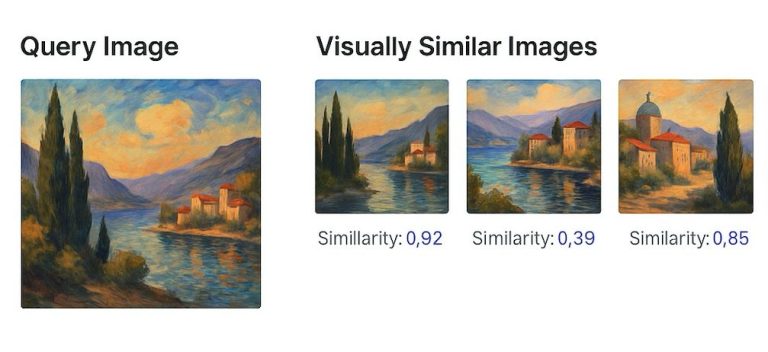
Each result from a semantic find includes a similarity score. Display this alongside the image to give users a sense of how confident the match is:
- 0.9+ — Very strong match
- 0.7–0.9 — Good match, likely relevant
- 0.5–0.7 — Partial match, may or may not be relevant
- Below 0.5 — Weak match, likely not what the user wants
Consider setting a threshold (e.g., only show results above 0.6) to keep results useful.
🛡️ Responsible AI Note: Embedding models are sensitive to image resolution. Different sizes of the same image, such as a full-resolution photo versus a thumbnail, can produce varying embedding vectors despite appearing identical to humans.
Practical Use Cases
Digital Asset Management
Photographers, designers, and marketing teams can search their entire image library using descriptions instead of relying on manual tags. “Find me all photos with people outdoors” becomes a single search.
Inventory and Product Catalogs
Retail and manufacturing teams can search product images by description — “blue widget with serial number label” — without needing every product meticulously tagged.
Insurance and Claims
Claims adjusters can search photo evidence using descriptions of damage types, locations, or conditions.
Medical and Scientific Records
Research teams can search microscopy images, field photos, or diagnostic images using natural language descriptions.
Responsible Use Considerations
Accuracy Isn’t Perfect
Semantic image search is powerful but imperfect. Models can misinterpret visual content, especially with:
- Abstract or ambiguous images
- Cultural context that differs from the model’s training data
- Low-quality or heavily cropped photos
Recommendation: Always present results as suggestions, not definitive answers. Let humans make the final call.
Privacy and Sensitivity
If your images contain people, sensitive locations, or confidential information:
- Ensure embedding generation doesn’t send images to external services you haven’t vetted
- Review your AI model provider’s data handling policies
- Consider whether facial recognition implications apply to your use case
Bias in Visual Models
Multi-modal models can inherit biases from their training data. They may perform better on certain types of images, demographics, or cultural contexts than others. Test with diverse data and monitor for inconsistencies.
🛡️ Responsible AI Note: To enhance explainability, consider using vector-based search instead of direct image search. This allows you to display cosine similarity scores alongside results, giving users a clear understanding of how closely matched the results are to their query. Providing this transparency builds trust and helps users interpret the AI’s decision-making process.
Performance Optimization
- Embedding size matters — Larger embeddings capture more detail but take more storage and processing time
- Index your embedding fields — Ensures fast similarity searches
- Consider caching — If the same searches are run frequently, cache results
- Server-side processing — Always generate embeddings on the server for batch operations
🛡️ Responsible AI Note: Use logging to enhance transparency and accountability in your AI workflows, but avoid capturing sensitive data in logs. Enable verbose logging only for debugging, and turn it off in production to protect privacy and maintain performance. Regularly review and manage logs to meet compliance and governance needs.
What’s Next
With text extraction (GetTextFromPDF()) and image search in place, the next frontier is combining them — imagine searching across both documents and images simultaneously, using a single natural language query.
FileMaker 2025 is building toward truly intelligent data interaction. The key is implementing it responsibly, with human oversight at every step.
Need help implementing AI image search in your FileMaker solution? Schedule a free call to discuss your use case.
How AI Was Used in This Post
AI assisted with drafting, technical research, and code example formatting. All content was reviewed against FileMaker 2025 documentation and tested implementations.
Frequently Asked Questions
A score of 0.9+ indicates a very strong match. Scores between 0.7 and 0.9 are good matches. Between 0.5 and 0.7 is a partial match. Below 0.5 is typically not relevant. Consider setting a threshold (like 0.6) to keep results useful for your users.
Yes. FileMaker 2025's AISemanticFind function lets users enter natural language queries like 'red sports car' or 'damaged roofing.' The system generates a text embedding from the query and compares it against stored image embeddings to find visually relevant results.
Create a looping script that checks each record for an existing embedding, generates one if missing, and commits the record. Run this on FileMaker Server during off-hours for large image libraries. Add error handling for corrupt or unsupported files.
Yes. Multi-modal models can inherit biases from their training data and may perform better on certain demographics, cultural contexts, or image types than others. Test with diverse data, monitor for inconsistencies, and always present search results as suggestions rather than definitive answers.
Is your team ready for AI in FileMaker?
Our free AI Readiness Guide walks you through the key questions to answer before your first AI project.
Get the AI Readiness GuideExplore Related Services
Related Posts

Responsible AI Use in FileMaker 2025
Explore how FileMaker 2025 puts AI front and center, and why understanding it is more important than ever. AI literacy and responsible implementation practices for FileMaker developers.
Read article →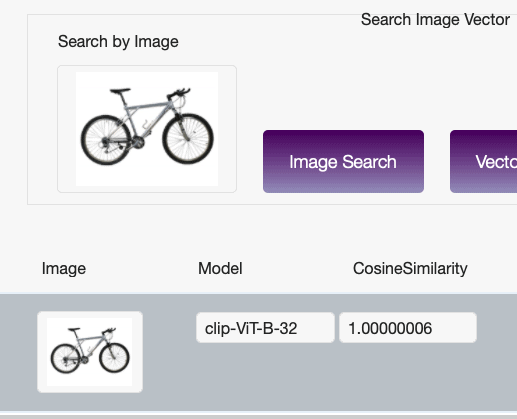
AI-Powered Image Recognition in FileMaker (Part 1 of 2)
Integrating AI-powered image recognition into FileMaker unlocks entirely new ways to interact with your data. Learn how to set up embedding models for semantic image search.
Read article →
How to Use GetTextFromPDF() in FileMaker 2025
Learn how FileMaker 2025's GetTextFromPDF() extracts text from PDFs for smarter, searchable, AI-powered apps.
Read article →